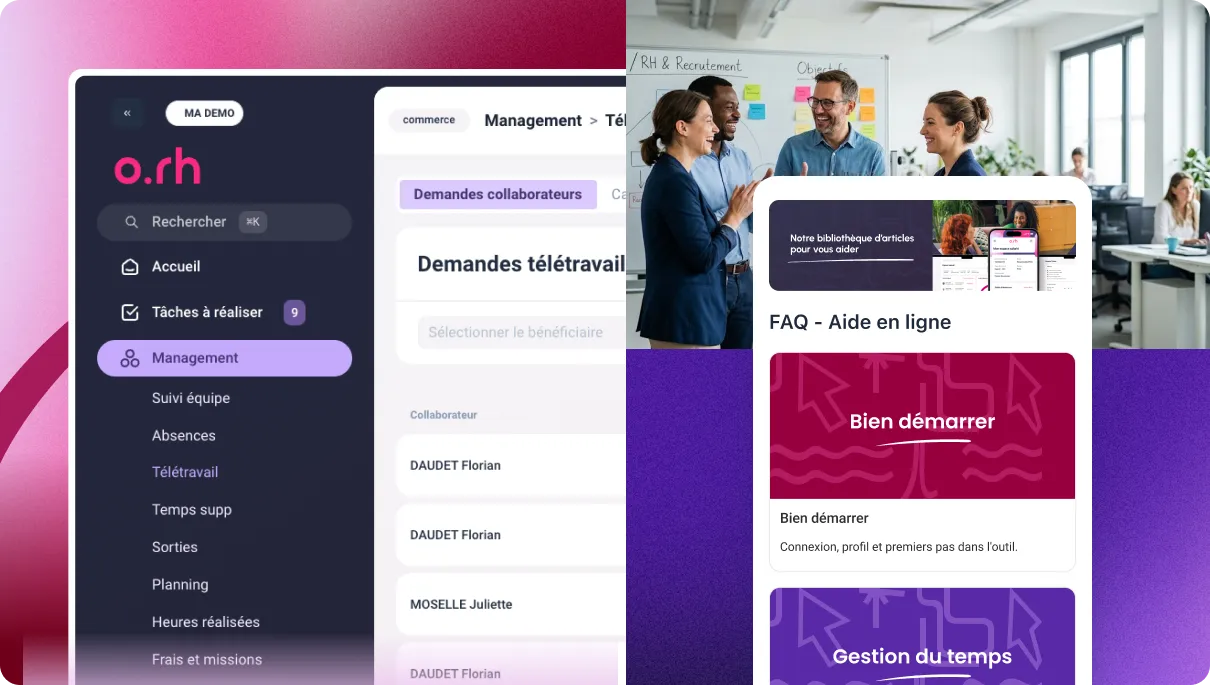
Bonuses, meal vouchers, remote work: what’s new in Optimal RH
3 new features1 functional improvement
This month brings something new. Three modules arrive in Optimal RH: bonuses, meal vouchers and remote work. And the online help gets a makeover. Here is what each one does, step by step.
Bonuses: defined once, added two ways
A bonus is defined once in the settings, then added for an employee from the schedule or from the hours worked. Bonuses then flow into your payroll variables, ready to export.
Set up your bonuses
In Settings, Modules section, open Bonuses. Each bonus has a name, an external reference for your exports and a value type: hours, number, amount or checkbox. Choose its application period (time slot, day or week), who can enter it and which employees it applies to. If you export your bonuses, fill in the acquisition code: without it, the bonus is flagged in red in the payroll variables.
Add a bonus from the schedule
In Management, Planning, hover over a day and click +. In the day panel, choose Add a bonus, select it, enter the value, then save. For a weekly bonus, use Add a weekly bonus on the week row.
Add a bonus from the hours worked
In Management, Hours worked, open the Team hours worked tab and click the day. Choose + Add, then Add a bonus, select it, enter the value and save. If the bonus conflicts with another bonus or with an absence, an alert lets you know: the bonus is not blocked, it is up to you to correct it.
Track your bonuses in the payroll variables
In Payroll, Payroll variables, open your company’s period. The header shows the bonus total. Filter on the Bonuses variable type and open an employee’s row: their bonuses are added automatically, with the status Awaiting export.
Good to know: the Bonuses menu appears if the module is enabled and you are an administrator or have the Manage bonuses permission.
Meal vouchers: from calculation to export
For each employee and each period, the module calculates how many vouchers they are entitled to. It then produces the file to send to the issuer and the variables to export to payroll.
Create one configuration per company
In Settings, Modules, Meal vouchers, each company has its own tab. Enter the name, the issuer, the voucher value and the employer contribution percentage. You can set a voucher cap and choose a monthly or custom period. Entitlements work in two modes: automatic, based on criteria (contract status or category, users), or manual, employee by employee.
Define your calculation rules
Choose how vouchers are credited: from the schedule, from the hours worked or as a fixed number. Set a minimum attendance time if needed. Then specify what deducts a voucher: certain absences, certain expenses (a covered meal, for example) or certain bonuses. The cap limits the total: with 15 eligible days and a cap of 10, the employee gets 10 vouchers.
Generate a period
In Payroll, Meal vouchers, click Generate the period. Choose the configuration, then the date ranges for entitlements, absences, hours worked, expense reports and bonuses. The calculation runs in the background: the period goes from Processing to Processing complete.
Check the details per employee
The summary gives the total number of vouchers, the total cost, the cost per voucher and the actual cost to the company. The Vouchers per employee tab details days worked, vouchers removed, retroactive vouchers and the total. Click a row to understand the calculation: entitlements, eligible days, cap, then the impact of absences, expenses, bonuses and hours worked.
Close and export
Click Close the period, then Download to get the issuer file. In Payroll variables, filter on Meal vouchers and close the variables: their status changes to Exported. Make sure the payroll period covers the voucher period.
For employees
Every employee you have granted entitlements finds their vouchers under Meal vouchers: the amount and number of vouchers, navigation between periods, and the calculation details with Understand the calculation.
Good to know: the Manage meal vouchers permission is enabled role by role, in Settings, Institutions, Permissions.
Remote work: from request to approval
Employees submit and track their requests, one-off or recurring. Managers or HR approve them with the team calendar in view. HR sets the rules in remote work policies.
Make a request, one-off or recurring
In Remote work, My requests, click Add a request. For a one-off request, click the days and choose morning, afternoon or both. For a recurring request, enter the start and end dates and the half-days for each weekday, then adjust specific days in the preview. Check the summary and confirm. If a slot falls on a mandatory office day, a conflict message lets you know.
Track and cancel your requests
The list shows the status of each request (for example Awaiting manager approval). The details show the request and its history, and My calendar gives a yearly view of your days. The Cancel request button takes effect immediately and cannot be undone: you will need to submit a new request.
Approve with the team calendar in view
In Management, Remote work, open a request from the Employee requests tab. The Team remote work tab shows the team calendar with approved and pending days. Click Approve or Reject, add a message if needed, then confirm. To save time, approve several requests at once from My tasks on the home page.
Set up your remote work policies
On the HR side, first enable the settings in Admin settings, Remote work section. In Settings, Remote work, click New policy. Define fixed office days, quotas (maximum remote days or minimum on-site days, per week, month, quarter or year) and minimum and maximum lead times for booking a day. Write the rules shown to employees, target the relevant population, choose whether exceeding a quota is blocking or just a warning, and set the approval workflow.
Export requests
In Management, Remote work, use Export with active filters, choose the period and get a CSV file: beneficiary, department, day, half-day, status, policy, requester, submission date. Cancelled requests are included too.
A revamped FAQ
The online help has been redesigned so you find answers faster: a new structure, a search, and new step-by-step articles.
Nine families to find your way
Getting started, Time management, Expenses and missions, Projects, Career and training, Payroll and meal vouchers, Recruitment, Employees and documents, Settings and support. Each family groups its modules, and each module its articles.
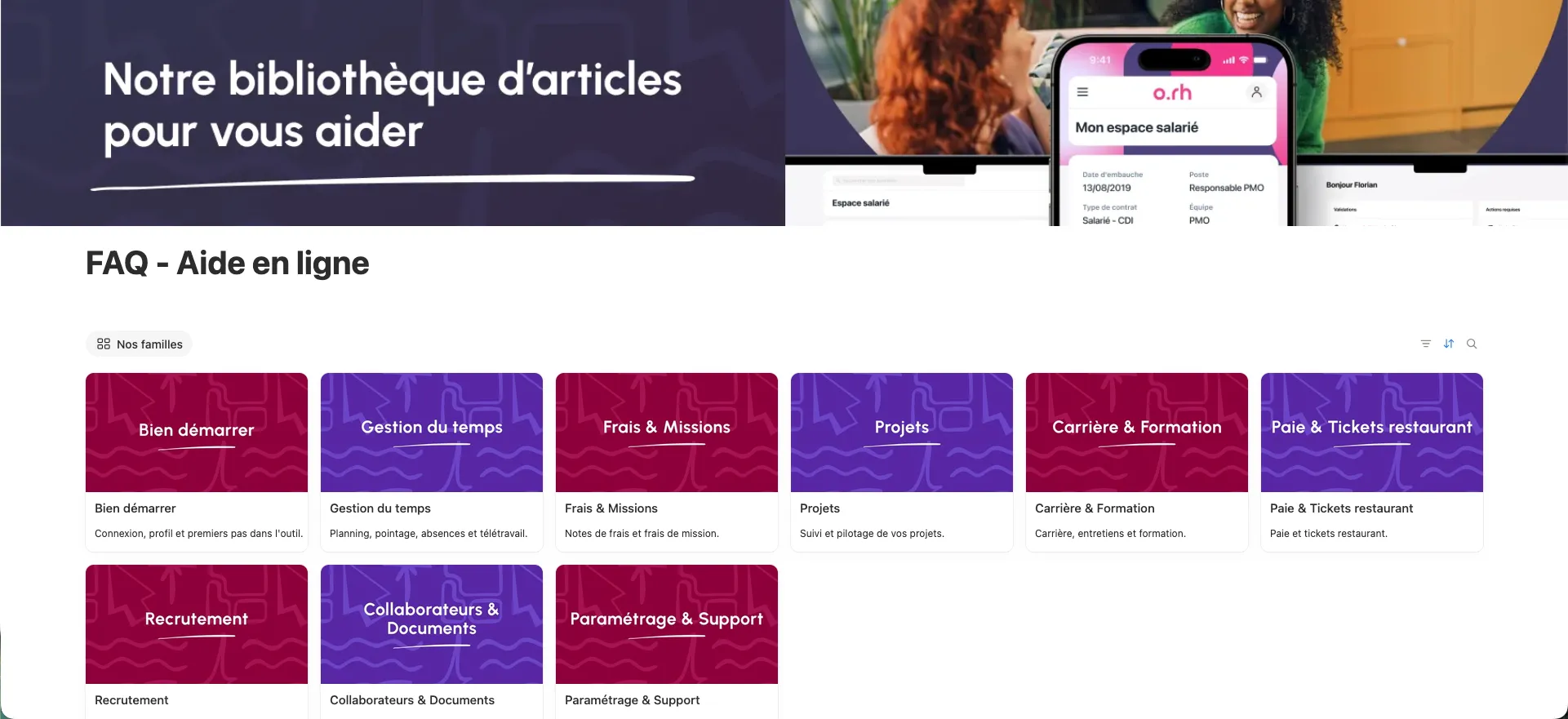
Step-by-step guides for each module
More than 20 modules and over 120 articles. Each article states the profile it applies to (employee, manager, HR or administrator), so you can go straight to what concerns you.
A search to get straight to the point
Type a word in the FAQ search bar: matching articles appear.
What’s coming next
Recurring bonuses, skills management and much more: that’s what we’re working on. Got an idea or a need? Get in touch, we read everything.